JD TITAN Verification: Why Your Cashout Needs ID and How to Upload Documents
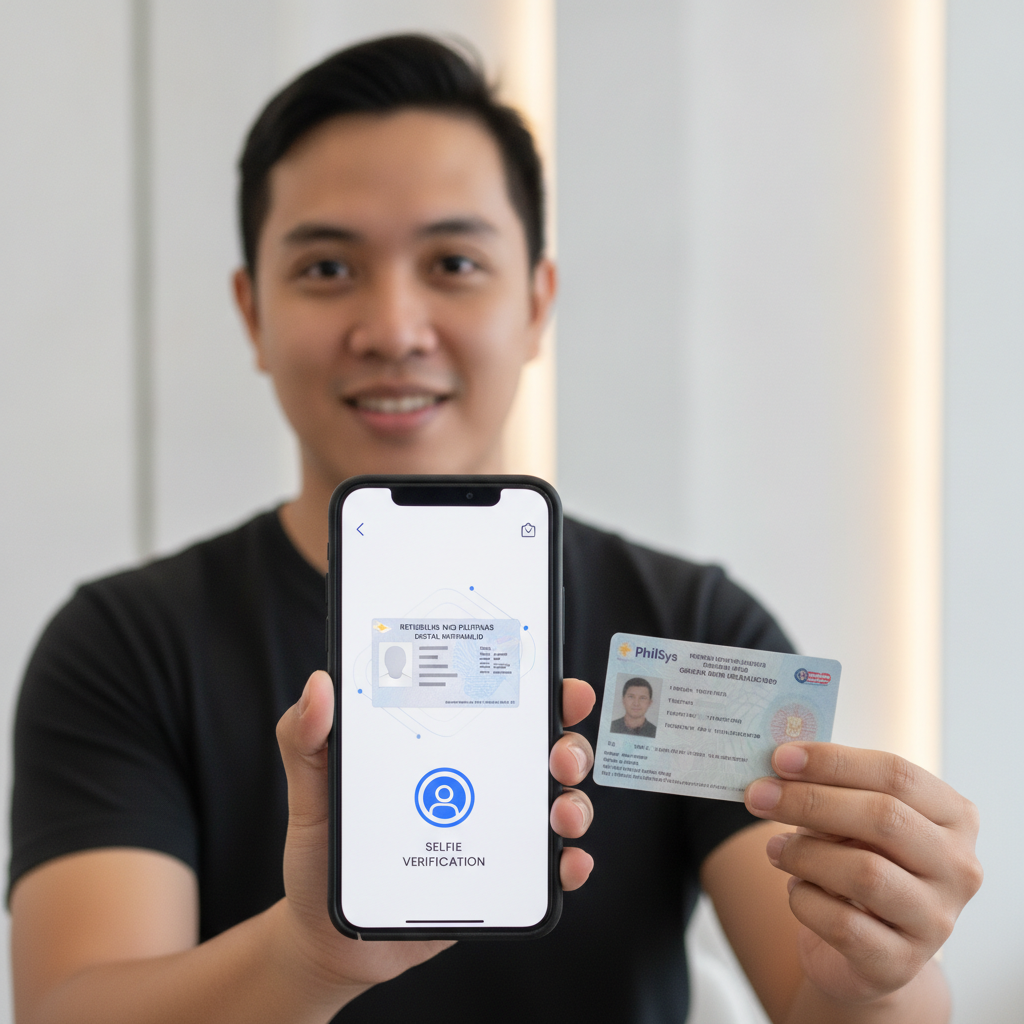
Why JD TITAN Asks for ID Verification Before Processing Withdrawals
When you request your first JD TITAN withdrawal to GCash, Maya, or bank transfer, the platform will typically ask you to verify your identity before releasing funds. This step is standard practice across licensed online casinos and sportsbooks operating in the Philippines.
Verification serves several purposes. It confirms that the person withdrawing money is the same person who opened the account and made deposits. It helps prevent fraud, money laundering, and underage gambling. It also protects your account—if someone else gains access to your login, they cannot pull your winnings without passing the ID check you already completed.
Most JD TITAN players only need to verify once. After your documents are approved, future withdrawals to the same GCash number, Maya account, or bank account usually process without requiring new uploads. However, if you change your withdrawal method, update your registered mobile number, or make an unusually large cashout, JD TITAN may request fresh documents or additional proof of address.
Expect verification to be mandatory before your first payout. Trying to skip this step will leave your withdrawal stuck in "pending" status until you submit valid documents.
Accepted ID Documents in the Philippines
JD TITAN accepts government-issued IDs that are current and clearly show your full name, date of birth, photo, and ID number. Expired documents will be rejected.
Primary ID options include:
- Philippine passport
- Driver's license
- UMID (Unified Multi-Purpose ID)
- SSS (Social Security System) ID
- PhilHealth ID
- Postal ID
- PRC (Professional Regulation Commission) license
- Voter's ID
If your ID does not show your current address—or if JD TITAN specifically requests proof of address—you may be asked to upload a second document. Accepted proof-of-address documents include:
- Recent utility bill (electricity, water, internet) dated within the last three months
- Bank statement or credit card statement with your name and address, issued within three months
- Barangay certificate or certificate of residency
In some cases, JD TITAN will also request a selfie verification: a photo of you holding your ID next to your face, with today's date written on a piece of paper. This confirms that you physically possess the document and that the photo on the ID matches your appearance.
Make sure the name on your ID matches the name you used when you registered your JD TITAN account. Mismatches—such as using a nickname during signup but a legal name on your ID—can delay approval or require you to contact customer support to update your profile.
How to Upload Clear Photos of Your ID in the JD TITAN App
Poor photo quality is the most common reason for document rejection. Follow these steps to ensure your upload is accepted the first time.
1. Take photos in good lighting
Use natural daylight or a bright室内 lamp. Avoid shadows, glare, or reflections that obscure text or your photo. Do not photograph your ID on a patterned surface; place it on a plain white or light-colored background.
2. Capture all four corners of the document
Frame the ID so that all edges are visible in the photo. Do not crop out corners or trim the image too tightly. If your ID has information on both sides, upload clear photos of the front and back.
3. Keep the image sharp and readable
Hold your phone steady or rest it on a flat surface to avoid blur. Make sure every line of text, your photo, and any ID numbers are legible at full size. If your phone camera supports it, tap the screen to focus before taking the shot.
4. Save the file in a supported format
JPEG and PNG files work on most systems. Avoid uploading PDFs or heavily compressed images; these often fail automated checks.
5. Open the JD TITAN app and navigate to the verification section
On Android, tap the menu icon (usually three horizontal lines at the top left), then select Account or Profile. Look for a section labeled Verification, KYC, or Documents. The exact wording may vary depending on your app version.
6. Select the document type and upload your photo
Choose the correct category—for example, "Government ID (front)" and "Government ID (back)." Tap the upload button, select your saved photo from your gallery, and confirm.
7. Review and submit
Before you hit Submit, double-check that the uploaded images are right-side up, in focus, and show the entire document. Once submitted, you cannot edit or replace files unless customer support intervenes or the system rejects them.
If you are using an iPhone or mobile web browser instead of the Android app, the process is similar: log in, go to your profile or account settings, find the verification or document upload section, and follow the on-screen prompts.
How Long Verification Takes and What to Do If Your Documents Are Rejected
Typical processing time
Most JD TITAN verification requests are reviewed within 24 to 72 hours. During weekends, public holidays, or periods of high withdrawal volume, it can take longer—up to five business days in some cases.
You will usually receive an email or in-app notification when your documents are approved. Once verified, your pending withdrawal will move to processing, and funds should reach your GCash, Maya, or bank account within the standard JD TITAN withdrawal time frame (usually a few hours for e-wallets, one to two business days for InstaPay or PESONet bank transfers).
Reasons for rejection
If JD TITAN rejects your documents, common causes include:
- Expired ID: The document is no longer valid.
- Blurry or low-resolution photo: Text and images are not readable.
- Partial document: Corners are cut off or one side is missing.
- Name mismatch: The name on your ID does not match your registered account name.
- Wrong document type: You uploaded a photocopy instead of an original photo, or a non-government-issued ID.
- Altered or edited image: Screenshots, scanned copies, or images with filters may trigger automatic rejection.
What to do next
Check your email or app inbox for a message explaining why your upload was declined. Retake the photo following the guidelines above—better lighting, all four corners visible, high resolution—and upload again through the same verification section in your account.
If you continue to experience issues, or if the app does not clearly explain the rejection, contact JD TITAN customer support. Provide your registered mobile number or account username, describe the problem, and ask for specific guidance on which documents are needed. Support is typically available via live chat in the app or through the contact page on the JD TITAN website.
In rare cases where your legal name differs from the name on your account—perhaps you used a nickname during registration—you may need to submit a government-issued document that links both names, or request a profile update from customer support before your verification can proceed.
Moving Money Safely and Responsibly
Verification exists to protect both you and the platform. While it adds a step to your first JD TITAN withdrawal, completing it once ensures smoother, faster cashouts in the future.
Keep your uploaded documents private. Never share screenshots of your ID, selfie, or proof of address on social media or with third parties claiming to "speed up" verification. Only upload files directly through the official JD TITAN app or website.
This guide is intended for players aged 21 and over. Online betting should be entertainment, not a source of income. Set a budget for deposits and withdrawals, and never chase losses. If you feel that gambling is becoming a problem, reach out to a local support organization or use JD TITAN's responsible-gambling tools to set deposit limits or take a break from your account.
JD TITAN is an independent platform, and this article is provided as a third-party guide. Approval times, document requirements, and support availability may change. Always check the latest instructions in your account dashboard and contact JD TITAN directly if you encounter technical issues during the verification process.